
Photos arrive in many places
Subcontractors may send photos by email, chat apps, or your own project system. Files can arrive in different formats and from changing crews.
FOR CONTRACTOR TEAMS
Subcontractors take photos with the free Timemark app and send them as usual. You check each photo before you approve the work.
✓ Photo Code printed on every Timemark photo.
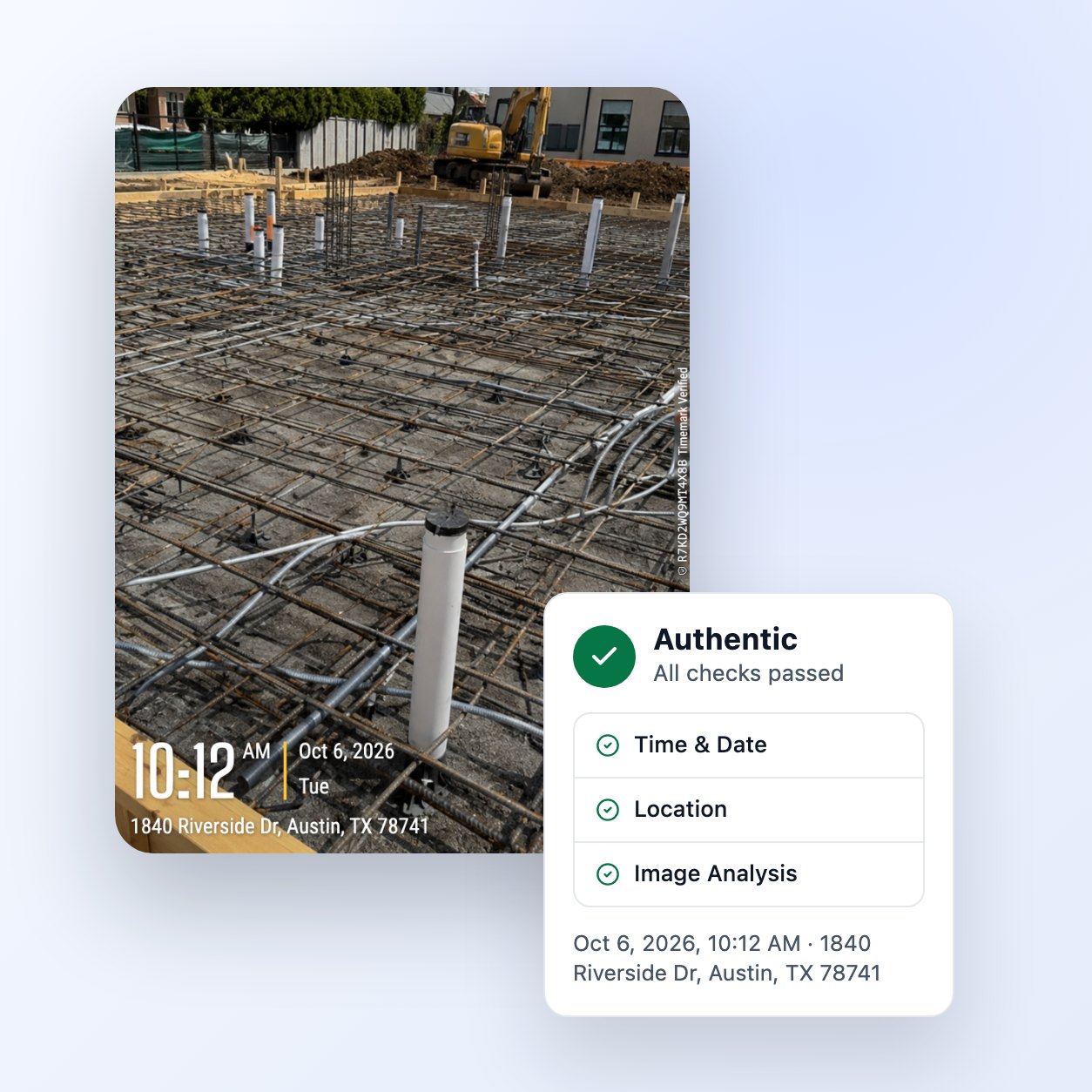
PHOTO APPROVAL
Check photos before approving work or payment. A photo by itself does not show when or where it was taken.
Subcontractors may send photos by email, chat apps, or your own project system. Files can arrive in different formats and from changing crews.
You cannot tell from a photo alone if it is old, from another site, or edited after it was taken.
Opening files, comparing details, and checking photos before approving payment takes time when you manage many subcontractors.
HOW IT WORKS
Your subcontractors keep using their usual delivery method. You check the photos before you approve the work.
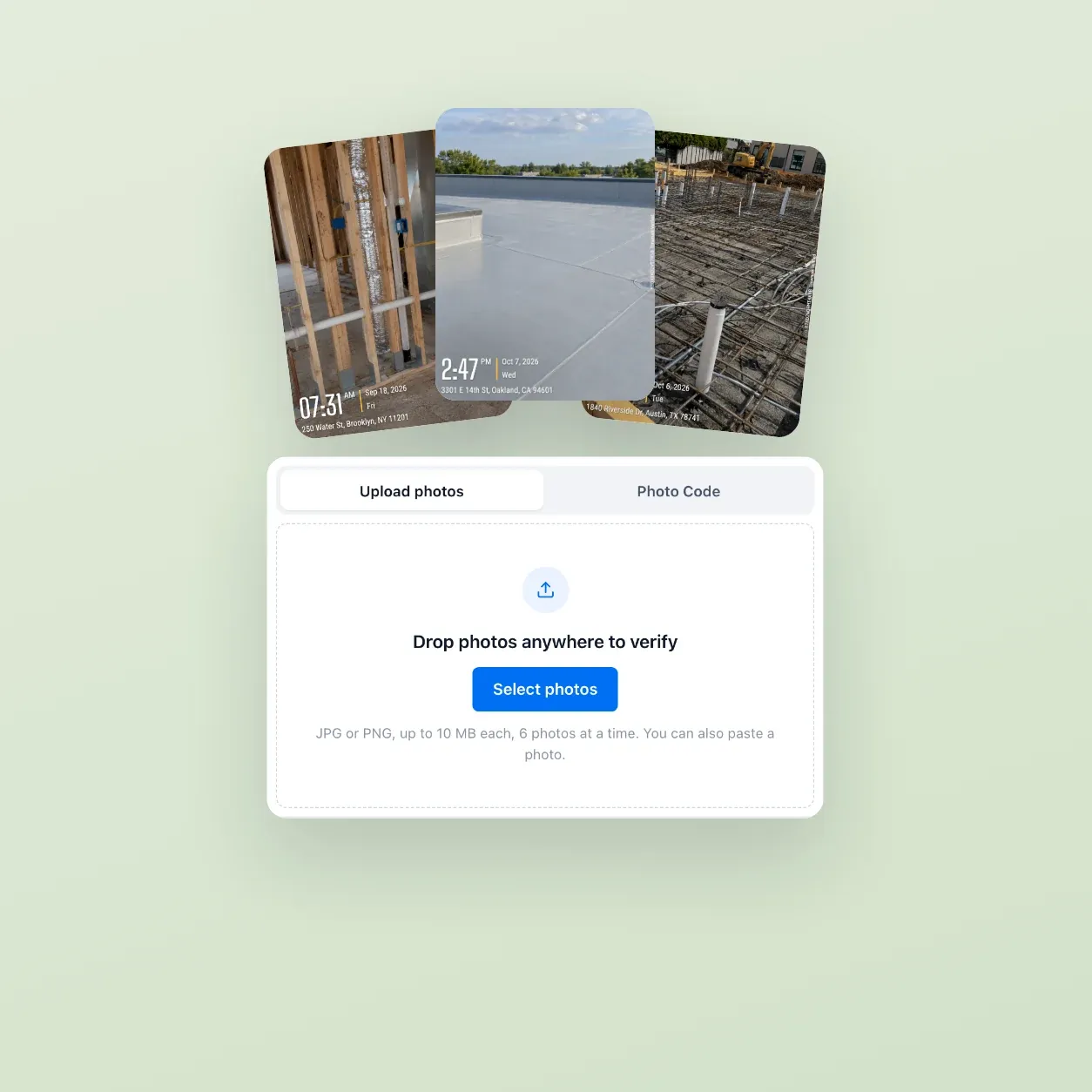
Subcontractors use the free Timemark app. Photo Code is on by default, and they do not need to join your Teamspace or take a paid seat.
They send job photos through email, chat apps, or your own project system, the same way they do today.
Use the free verification page to upload a photo or type its Photo Code. You can check up to 6 photos at a time.
Timemark will support photo verification through an API inside your own system. Access is by request.
Each result is Authentic, Fake, or Unable to Verify. A photo needs a clearly visible Photo Code to be verified.
Photo verification checks the photo against the original record stored when it was taken.


FOR CONNECTED CREWS
With "Timemark capture only", every photo must be taken in the Timemark app, so there is nothing left to verify. The Field Quality Control page explains how.
View Field Quality Control →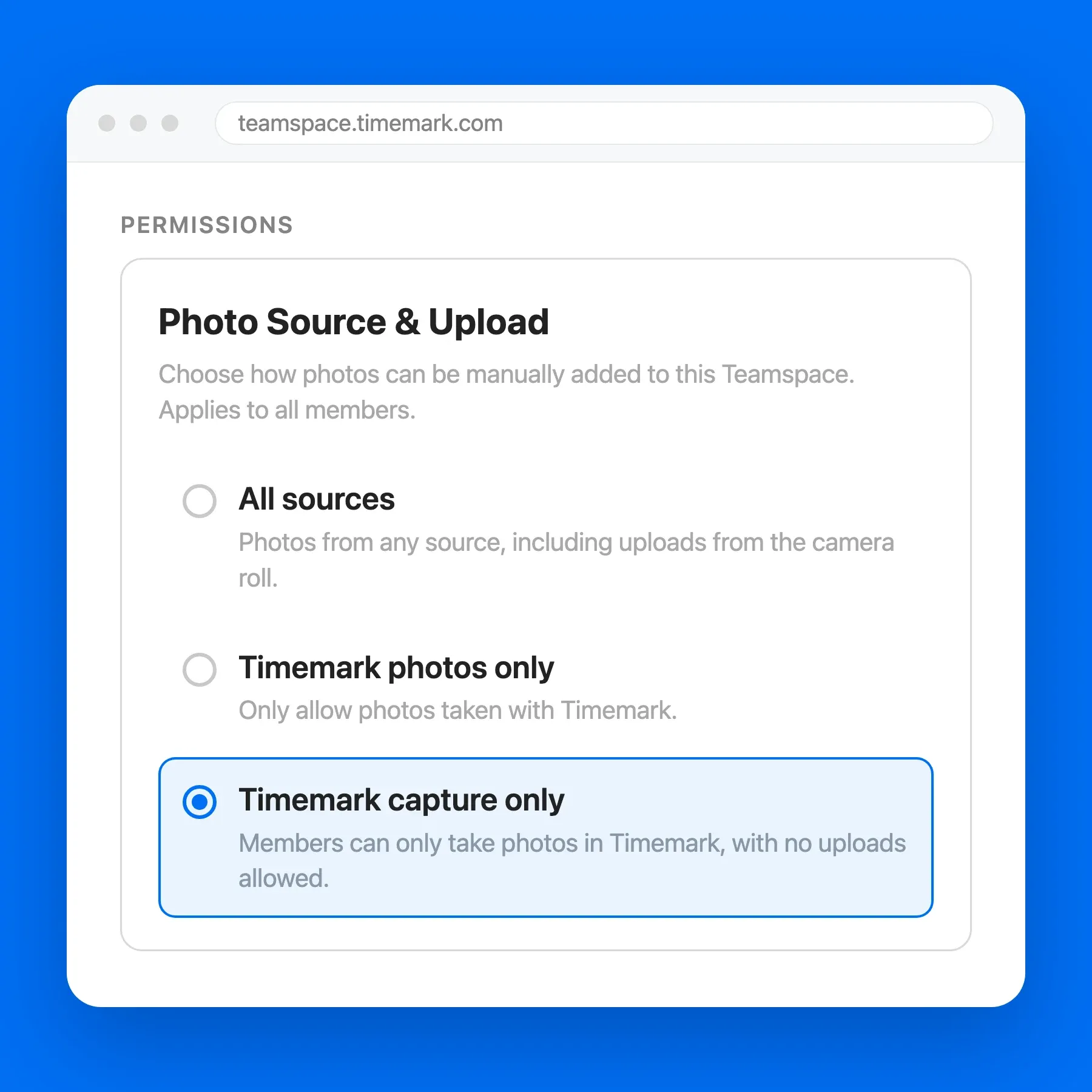
Members take photos in the Timemark app, and photos upload to Teamspace automatically, organized by project.
Set project access to Selected Members and member access to Own only, so each subcontractor sees only their own projects and photos.
API AND MCP
Timemark will support automatic verification of Timemark photos through an API and MCP. Access is by request.
Request Access →