
How to Tell Whether a Worker Sent an Old Photo
Elvis
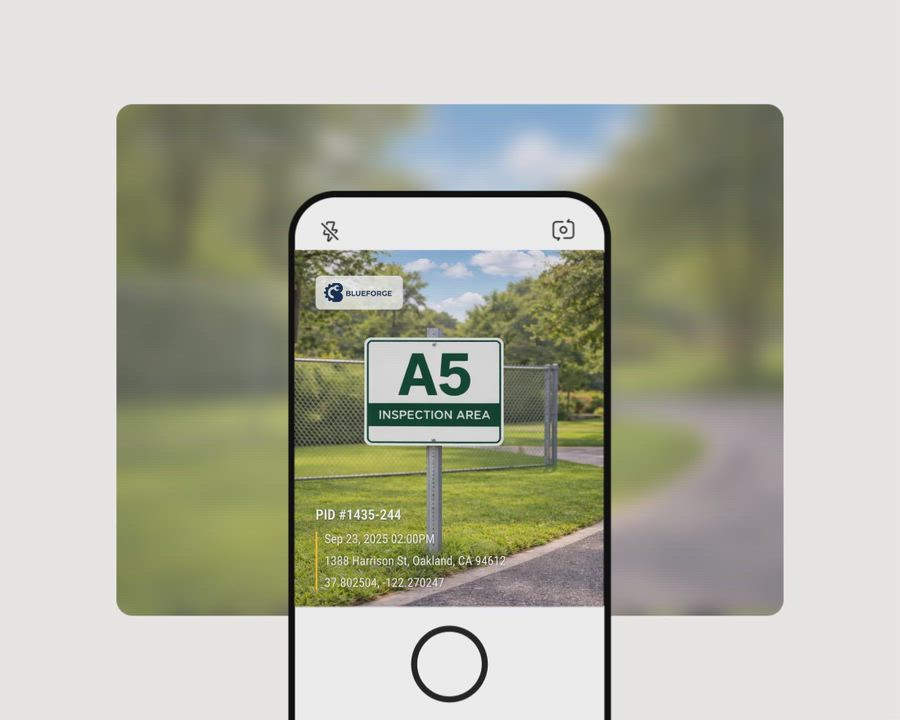
If you suspect a worker sent an old photo, ask for the original file, check its details and scene, then request a new photo with a current detail. To stop old uploads in the future, use Timemark and set your team workspace, Teamspace, to Timemark capture only, so workers must take each work photo in the app.
How to check a photo you already received
First, ask for the original image file. Messaging apps often remove file details during sharing. WhatsApp usually removes metadata when a person sends an image as a photo. Sending it as a document can keep more of the original file information.
If you have the original file, open its photo details and check the date and time. For instructions on each device, read how to read EXIF photo data. Also compare the picture with the job record:
- Check weather, daylight, shadows, snow, or other conditions.
- Check the work stage, materials, equipment, or damage shown.
- Compare it with photos from the last visit. What should have changed?
- Search your past messages and job folders for the same image or a similar one.
- Use a reverse image search if you think the picture came from a public website.
If you still have doubts, ask for a new photo right away. Name something that could not have been in an earlier photo, such as a handwritten note with today's date, a specific tool, or an item you name during the call.
- Original file details
What it can show: A recorded date, time, device, and sometimes location
What it misses: Details can be edited, wrong, or missing - Scene comparison
What it can show: Conditions that do not match the job or visit
What it misses: A similar old photo may still look believable - Search past records
What it can show: Whether the same picture was used before
What it misses: It cannot find photos sent outside your records - Reverse image search
What it can show: Whether a public web image was reused
What it misses: It may not find private images - A new requested photo
What it can show: Whether the worker can show a current detail
What it misses: It does not prove when the earlier photo was taken
Do not treat one check as proof
These checks can raise questions, but none proves dishonesty on its own. EXIF data can be edited or wrong if a phone had the wrong clock. Missing EXIF is normal after sharing through messaging apps or social media.
A printed date alone also proves nothing. Free online tools can print any date on any picture. A date added that way has no Photo Code and cannot be verified.
Ask the worker what happened before you accuse them. Poor signal, a delayed upload, or a photo taken earlier during the same job may explain the issue. Compare the photo date with the work schedule and keep a record of the answer.
How to stop old photo uploads next time
A written policy tells workers what you expect. It does not stop someone from choosing an old image from their camera roll. For work that needs a new photo, remove the upload option.
Timemark stamps photos only as they are taken in the Timemark app. It cannot add its stamp to an old photo. A photo from another camera does not get a Timemark stamp or a Photo Code. Timemark uses network time. If a phone clock was changed, Timemark detects this and corrects the time shown on the photo.
In the Teamspace web app, go to Settings, General, then the PERMISSIONS section and Photo Source & Upload. Only the Team Owner and people with the Manage team permission can change it. The setting applies to every member, including the Owner. See the Teamspace general settings guide for details.
For old-photo proof, these two choices are different:
- Timemark photos only allows only photos taken with Timemark to be uploaded. However, a worker can still upload an old Timemark photo. Its original printed time stays on it.
- Timemark capture only turns off manual uploads and hides the + button above the shutter. Each future photo must be taken inside the app. Timemark capture only stops forged uploads completely, because nothing can be uploaded.
Use Timemark capture only when the photo must be taken during the visit. It can also block a valid upload, such as a photo taken with the phone camera by mistake.
You can also set Auto-Save to Camera Roll to Teamspace only. Captures then stay in the app and Teamspace instead of going to the camera roll. This is a team default, but each member can change it on their phone.
These settings only control what enters Teamspace. They cannot control photos sent through WhatsApp, text, or email. Make Teamspace your required place for work proof. Your crew can install the app from the Timemark download page.
How to check a Timemark photo
A Timemark photo can show a 14-character Photo Code printed on the image. The code is on by default. Upload the photo with its visible code to verify.timemark.com, or use Verify Photos at the top of the Timemark app.
Verification checks Time & Date, Location, and Image Analysis. An Authentic result means the photo was taken with Timemark at the recorded time and place, and the picture matches the record. Read more about Timemark photo verification.
There is one important trap. Authentic does not mean the photo was taken today. An old Timemark photo can still be Authentic. Always compare the printed date with the date the work was due.
What this cannot catch
Photo checks cannot prove that the scene itself was real. A person can stage a scene or photograph another screen. Timemark also cannot verify a photo when the Photo Code was turned off, cropped out, or covered.
When a photo is still in doubt, ask for a new picture from a named angle with a specific current item in the frame. For higher-risk work, visit the site or send a supervisor. Use photos as one part of the job record.
When another approach fits better
Timemark requires workers to use the app for capture. If your workers will not install an app, use another process, such as a supervisor visit or customer confirmation.
For lending, insurance, or business credentialing, Truepic Vision may fit better. It uses a controlled inspection flow by link and includes fraud checks for photos and video.
Some newer cameras and phones support Content Credentials, also called C2PA. They provide a signed photo history that a compatible viewer can check. This can fit when your devices support it.
A short rule for your crew
Take all required work photos in Timemark before leaving the site. Include the completed work and any item your manager asks for in the frame. Keep Auto save to Teamspace on so photos sync to Teamspace when a connection is available. Do not send work proof through WhatsApp, text, or email unless your manager asks you to. If a photo is in doubt, your manager may request a new photo from a named angle or visit the site.
Frequently asked questions
How can you tell if a photo is old?
Ask for the original file, check its details, compare the scene with the job, and search earlier job records for the same image. If needed, request a new photo with a current detail you name.
Can someone fake the date on a photo?
Yes. EXIF dates can be edited or wrong, and online tools can print any date onto a picture. A printed date by itself does not show when the photo was taken.
Can employees upload old photos to Timemark?
With All sources, they can upload any image. With Timemark photos only, they can upload an old Timemark photo with its original time. With Timemark capture only, manual uploads are off, so future photos must be taken in the app.
Does Timemark work without signal?
Yes. Normal offline photos still show the real time and carry a Photo Code. They sync to Teamspace when the phone reconnects and can be verified after that.
What does a manager need to pay for?
Photo Source & Upload is available on Free and Business. Free Teamspace is limited to 100 photos and 3 projects. Teams using Teamspace daily need the Business plan.