
How to Prevent Fake Clock-Ins for Field Crews
Elvis
Use a tool that blocks a bad clock-in when it happens if you need hard location rules, face matching, scheduling, or payroll. Use photo proof if your crew works across many sites and you need a record to check later without fixed hardware or a payroll system.
No single method stops every fake clock-in. A good attendance process combines a clear rule, a tool that fits the risk, and regular review.
How fake clock-ins happen in field work
Field crews do not start work at one office. They may go to customer homes, job sites, warehouses, or parking areas. Common attendance problems include:
- Buddy punching: One worker clocks in for someone who is not there.
- GPS spoofing: A worker uses a fake location app so their phone appears to be at the site.
- An old photo: A worker submits a photo from another day.
- Clocking in nearby or from home: A worker is near the site, or says they are there when they are not.
- An edited timesheet: Hours are changed after the workday.
A location check does not show who is holding the phone. A selfie can show the person, but may not show the exact site. First decide which problem causes the most risk for your company.
Compare attendance methods for field crews
- Geofence
What it stops: Can block or flag clock-ins outside a set area
What it misses: Phone GPS can drift or be spoofed. It may not show who uses the phone.
What you need: A defined site area and a tool with geofence rules - Selfie at clock-in
What it stops: Gives you a photo to review and can reduce buddy punching
What it misses: A manager must review it. It may not prove the exact site.
What you need: A phone camera and review process - Face recognition
What it stops: Can compare the person clocking in with a saved face record
What it misses: It may not prove work was done at the site. Biometric privacy rules may apply.
What you need: Employee consent and local legal review - Shared kiosk or fixed hardware
What it stops: Creates one controlled clock-in point
What it misses: It does not fit crews moving between many sites.
What you need: A fixed location, tablet, or installed hardware - Photo proof with a verification code
What it stops: Creates a photo record that can be checked for recorded time, location, and image changes
What it misses: It does not prove the scene was not staged. A manager must review who is in the photo.
What you need: A crew phone and a process for checking records
A geofence can help at a fixed site, but it depends on the phone's GPS and GPS can be spoofed. Face matching adds another check, but it can bring biometric privacy rules, including laws such as Illinois BIPA. Check local rules before collecting face data.
When to choose a full time clock system
Choose a full time clock system if you need shift scheduling, overtime rules, payroll connections, or a hard block outside a work area.
Connecteam has geofences from 500 to 2,500 feet. It can block clock-ins outside the area and send you an approval request. It can require a selfie at clock-in. It also has a kiosk with face recognition, shift scheduling, timesheets, and payroll integrations.
Jibble has face recognition at clock-in, geofences that block clock-ins from elsewhere, shared tablet kiosks, offline mode, overtime calculation, and exports to Xero, QuickBooks, and Deel.
These tools are a better fit when you need enforcement and payroll operations. They do more than create a record for later review.
When photo proof fits field attendance
Photo proof fits when your crew works at many sites, you do not want hardware at every location, and you do not need a payroll system connection. It also fits when you or a client want to check a clock-in record later.
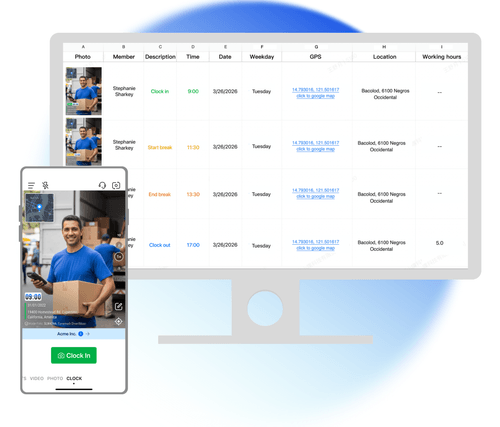
Timemark has a Clock mode for attendance. On the camera screen, a worker taps Clock, then Clock In, Start Break, End Break, or Clock Out. Each clock-in and clock-out is a photo taken on the spot. A clock photo cannot be selected from the gallery. See the Clock In and Out instructions.
The photo shows the time and address. Time comes from the network. If a phone clock was changed, Timemark corrects the time shown on the photo. If Timemark detects a mock GPS location on iPhone or Android, the address says “Virtual location detected.”
A 14-character Photo Code is printed on the photo by default. It links to the original time, location, and picture features recorded at capture. Upload a photo with its visible Photo Code to verify.timemark.com to check Time & Date, Location, and Image Analysis. An Authentic result means the photo was taken with Timemark at the recorded time and place, and the picture matches the record. For attendance, compare the printed date and time with the scheduled shift date and start time.
Learn more about photo verification and photo-verified attendance.
Timemark does not match faces automatically. You must look at the photo to see who is in it. It does not block a clock-in outside a site. A project address can remind a worker to select a project when they arrive within range, but it is only a reminder.
Set up a photo attendance process in one week
- Create your Teamspace. Add your crew and create projects for your regular sites or customers.
- Set the upload rule. In the Teamspace web app, go to Settings, General, then the PERMISSIONS section and Photo Source & Upload. Choose Timemark capture only. This turns off manual uploads, hides the button above the shutter, and requires future Teamspace photos to be taken in the app.
- Write one clear photo rule. For example, require a front-camera photo that shows the worker's face and a recognizable part of the site. State when workers must clock in and out.
- Test with the crew. Have each person make a test Clock In and Clock Out. Check that photos reach Teamspace and the address makes sense.
- Spot-check records each week. In Teamspace, review Activity, Time clock by member and date. Check the photo, time, address, and any “Virtual location detected” notice. Review a fair sample, not only workers you suspect.
- Send hours to payroll. The team Sheet totals hours by member and date. Export it to Excel .xlsx for the payroll process you already use. Read more about time tracking.
Timemark records work time with breaks removed, and work time cannot be edited by hand. It records attendance. It does not schedule shifts, calculate pay rules, or run payroll. Your crew can download Timemark for iPhone or Android.
Be fair to your crew
Put the rule in writing before you enforce it. Explain what photo is required, when it is required, who can review records, and what workers should do if they have a phone or signal problem.
Ask questions before accusing someone of time theft. GPS can drift, especially indoors or near large buildings. A photo can be unclear, and an address can point near the job site instead of the entrance. Review the photo, time, address, and job details together.
A photo does not prove every detail of a scene. Someone can stage a scene or photograph another screen. Use photo records as part of a consistent attendance process.
Frequently asked questions
Is there a time clock app that takes a photo when employees clock in?
Yes. Timemark Clock takes a photo for each Clock In and Clock Out. The photo cannot be selected from the gallery. It shows the recorded time and address. The clock-out photo also shows clock-in time, clock-out time, break time, and work time.
Can employees fake GPS on a time clock app?
A worker may try to use a mock GPS app. Timemark detects mock GPS locations on iPhone and Android, and the photo address says “Virtual location detected.” Normal GPS drift can still happen, so review the photo and job details as well as the address.
How do you stop buddy punching without a kiosk?
Require a selfie clock-in that shows the worker's face and part of the site. Review records at random. If you need automatic face matching or a hard location block, Connecteam or Jibble may be a better fit than Timemark.
Does Timemark do payroll?
No. Timemark does not run payroll, schedule shifts, or apply pay rules. It records clock-in, break, and clock-out records. You can export the team Sheet to Excel .xlsx for your payroll system.
What does it cost for a crew?
Timemark is free to download. Free Teamspace is limited to 100 photos and 3 projects. Teams that rely on Teamspace daily need the Business plan, which costs $7 per user per month, or $60 per user per year when paid yearly. Every member of a Business team is a paid seat.