If you take photos for work, you’ve probably run into this: a perfectly good photo with zero context. No timestamp. No location. No proof of when it happened. When I worked with contractors as an office coordinator, I had the “when was this photo taken?” conversation more times than I can count.

After years of dealing with chaos, I’ve tested almost every method myself. In this post, I’ll break down the best ways to timestamp iPhone pictures.

Table of Contents:

  1. Method 1: Add Timestamps to Existing Photos on iPhone
  2. Method 2: How to Batch Timestamp Photos
  3. Method 3: Timestamp a Photo as you Take it Using a Timestamp Camera
  4. What to Look for When Choosing a Timestamp Camera?
  5. Pitfalls of Timestamping Existing Photos
  6. Why File Format Matters: HEIC vs JPEG

1. Method 1: Add Timestamps to Existing Photos on iPhone

Let’s start with the simplest case. You already have photos in your camera roll. They need visible timestamps.

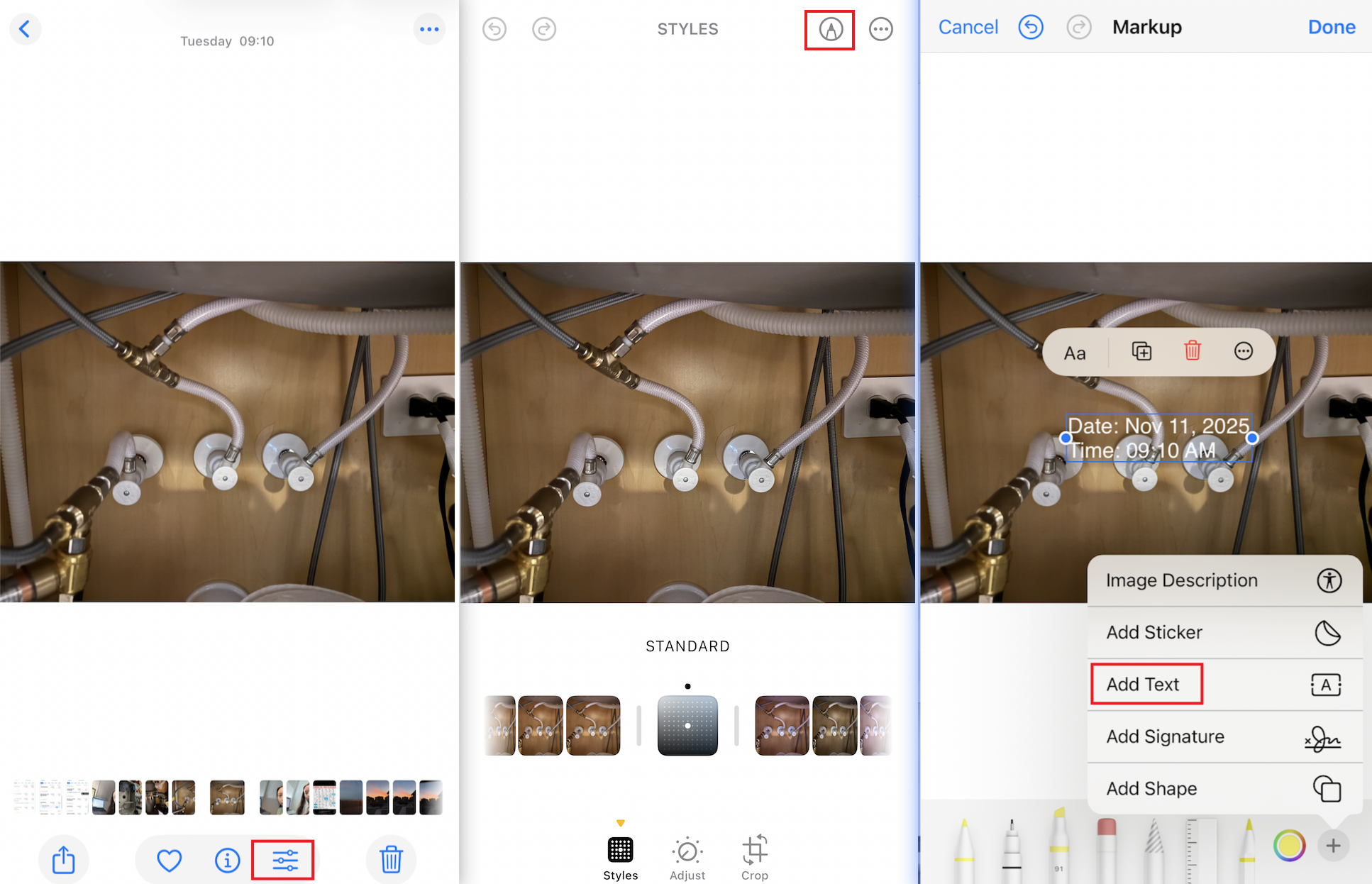
iPhone Photos does store the time and date inside metadata. But that is not printed on the actual image. To make it visible, you can use Markup.

I use this method only when I need to timestamp one or two photos. Maybe five if I am feeling optimistic.

How to do it:

  1. Open the photo.
  2. Tap Edit.
  3. Tap Markup.
  4. Add a text box and type the date and time.
  5. Drag it into position and save.

This methods gives you full control over the style and placement. The downside is speed. If your job involves dozens of photos per day, skip ahead because your thumbs will stage a rebellion.

The benefit of this method is control. You can pick your own text size, color and placement. If you only need a quick fix, this is enough.

2. Method 2: How to Batch Timestamp Photos

Batch timestamping is where most people hit a wall. Editing one photo is fine. Editing fifty is not. That’s where batch editing apps come in.

These apps make it easy to apply the same look to many photos at once. They are simple, quick and great for teams that want a consistent format. The only catch is that some apps ignore the original metadata.

1. PhotoMarks

PhotoMarks lets you apply text, watermarks or timestamps to a whole group of photos at once. I like it because the editing flow is simple and easy to repeat. However, the mobile app has fewer customization options than the desktop version, so you may hit limits if you want more control.

2. TimeStampIt

TimeStampIt lets you import photos and add timestamps, captions and location in batch. It’s simple and efficient for documenting after the fact. The only drawback is that custom formatting options are limited.

3. DateStamper

DateStamper reads each photo’s metadata and stamps the correct time on your images. It’s fast, simple and great for bulk updates. However, if you need to stamp other metadata like location or add custom text, you’ll need the paid version. This part of the video shows you how to use DateStamper to add time to your photos.

This method works great when you already have a large batch of photos. The app reads each photo’s metadata and stamps the photo time during import, so you keep the original capture details without doing anything manually. The only thing to watch out for is this: if the metadata was changed earlier, the app will still rely on that edited information.

3. Method 3: Timestamp a Photo as You Take It Using a Timestamp Camera

This is the method I personally use and trust the most. If you take photos on the job, real-time stamping is the cleanest workflow.

What does a timestamp camera do?

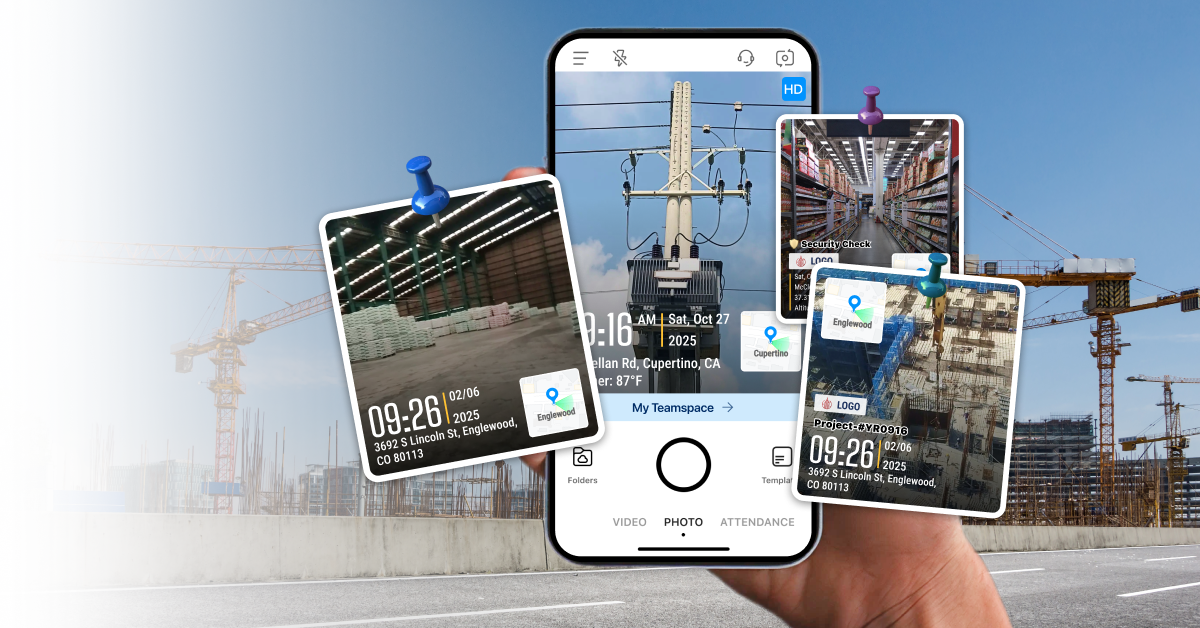
A timestamp camera lets you add date and time to photos the moment you take them. Many timestamp camera apps also add extra details like location, notes, logo, or project info. And this is where it gets helpful in real-world workflows. You open a camera app. You take the photo. The timestamp is already there. No extra steps. No editing later.

How to use a timestamp camera?

1. We use Timemark Camera in this example. Open the Timemark Camera app. The timestamp appears automatically at the bottom left corner.

2. Choose a template that fits your work, like inspections, deliveries, or cleaning job.

3. Or tap the timestamp to create your own template. Add location, notes, GPS coordinates, or even your company logo.

4. Take the photo. That’s it.

This video shows how Timemark works in practice:

4. What to Look for When Choosing a Timestamp Camera?

There are tons of timestamp and date-stamper apps out there, many with almost identical names. Here’s what I look for in a good timestamp camera

  1. Anti–tampering time:  If the app depends on the user’s device clock, someone can change it. Look for apps that sync with a server or validate the timestamp.Additional fields: Most teams need more than a visible timestamp, like GPS,  job number, or project ID.
  2. Additional fields: Most teams need more than a visible timestamp, like GPS,  job number, or project ID.
  3. Reliability: If an app keeps freezing or throwing ads at you, it’s just getting in the way. You need something that stays steady when you’re out in the field.
  4. File naming: iPhone photo names are impossible to interpret and tell you nothing about when or where the photo was taken. A good timestamp camera adds real information, like time, location or project details.
  5. Photo organization: Field teams capture a lot of photos. A good system sorts them into project folders so you can actually find what you need later.
  6. Reporting: Not a must-have, but some apps I’ve tried can even turn your photos into reports. Extra time saved!

Below is a quick comparison of top timestamp camera applications (I’ve tried them all out for you!) on app stores:

Timestamp Camera
Anti-Tampering
Additional Fields Reliability File Naming Photo Organization Reporting
Timemark Camera Prevents tampering even when the system clock is changed Location, GPS coordinates, altitude, compass, map, tag, notes, logo, and more High Automatic file naming with stamped fields Auto-sorts by project, member, and date PDF, Excel (.xlsx), kmz, project link, zip
Timestamp Camera No Location, GPS coordinates, altitude, compass, map, tag, notes, logo, and more Freezing and motion-blur reported; occasional lag Select from built-in presets No No
GPS Map Camera No GPS coordinates, address, map, weather, magnetic field, compass direction, altitude App frequently freezes during ads Customizable No PDF
Solocator No Location, compass, altitude; (with “Industry Pack”) project name, photo description, company or username, logo Some users report crashes/freezing Customizations only available in the paid version Sort by date, address, and project kml, kmz, csv
Open Camera No GPS coordinates, text Reliable overall; crashes on some Android models Custom save prefixes only No No
Notecam No GPS coordinates, comments Some bugs and performance issues reported Limited: date / time / sequence No txt, csv, kml
Conota Camera No GPS coordinates, project name, custom notes High Customizable No No

5. Pitfalls of Timestamping Existing Photos

This is the part most articles skip, even though it causes the biggest real-world problems.

1. Messaging apps strip metadata

WhatsApp, Messenger, and other messaging apps compress photos. The recipient often gets a clean, metadata-free file. If you need to send work photos through chat apps, it’s better to share ones that already have a visible timestamp.

2. Metadata can be edited

On iPhone you can change the time and date of a photo. You can even change the location. It’s handy for organizing personal albums, but it also means the original information isn’t always reliable. If you ever need a photo to serve as real proof, this flexibility can work against you.

3. Simple edits can wipe data

Cropping, filtering or exporting through certain apps can rewrite or remove EXIF information. It happens more often than people think.

All of this is why many field teams eventually move to purpose-built, tamper-proof timestamp tools like Timemark!

6. Why File Format Matters: HEIC vs JPEG

This part surprises people the most. iPhones use HEIC by default because the files are smaller and higher quality. The problem is compatibility. Many government portals, client systems and insurance platforms still expect JPEG.

If you work with anyone who reviews your photos outside Apple’s ecosystem, use JPEG. It reduces headaches. Sometimes, when you change a photo's format, metadata gets lost. That’s because some apps remove it when saving the new file.

Timemark saves photos in a format that’s easy to share. It also keeps all the metadata safe from start to finish.This avoids the common situation where a photo arrives at a client portal with all its context missing.

Final thoughts

Timestamping photos sounds simple until you actually try to build a clean workflow. iPhone gives you the basics, but it doesn’t give you the control or consistency field teams need.

Use Markup when you just need a quick fix. Use batch tools when the photos already exist and you just need to clean them up in bulk. Use a real-time timestamp camera when you're the one taking photos and want reliable, uniform stamps without extra work. And if you need photos that can be trusted in a report or review, choose a tool like Timemark. It prevents manipulations and verifies the photo’s authenticity, not just paint a date on top.

Frequently Asked Questions

  • Can timestamped photos hold up in court?
The truth is simple. A timestamp on a photo does not guarantee anything. What really matters is if the photo’s hidden info can be trusted. Here’s what people like lawyers and insurance teams check: 1) Can the timestamp be manipulated? 2) Is the metadata intact and consistent? 3) Was the image edited?
  • Are timestamp camera legal?
Yes. Timestamp cameras are legal to use. Adding visible date and time to your own photos is simply a form of documentation. In fact, many industries rely on timestamped photos for inspections, reports, compliance and record-keeping.
  • What is the purpose of timestamp?
A timestamp shows when a photo was taken. It adds context and helps you prove timing for work, inspections, deliveries, claims or any situation where “when” matters. It also keeps your photos organized and easier to understand later.
  • How do I turn on the time stamp on my camera?
Some Android devices have a built-in toggle under Camera settings, but the iPhone does not. If you use an iPhone and want to see the time and date on the photo, you’ll need a timestampcamera app or Shortcut to add it. Some Android devices have a built-in toggle under Camera settings, but the iPhone does not.
  • How do I take a photo with a timestamp?
If you use a timestamp camera app, the steps are simple. Open the app, take the photo, and the timestamp appears instantly on the image. Apps like Timemark can also add location, notes and other fields as you capture
  • Can the timestamp be manipulated?
For most timestamp camera apps, yes. Someone can manipulate the timestamp by changing the device clock. And for date-stamper apps, people can even screenshot an image and re-stamp it, which makes the timestamp easy to alter. However, Timemark goes further. It validates your time and location against network data ,so the timestamp and GPS can’t be manipulated through clock changes or using fake GPS.
  • What if the image, but not the timestamp, has been edited?
If someone edits the image but leaves the timestamp untouched, most apps can’t tell. Timemark adds a layer of protection. Timemark solves this by keeping a verified copy on the server (when the photo code is turned on). When you run the photo through the Verification Center, it will tell you right away if the image has been changed.
  • Does the iPhone camera have a timestamp?
The default iPhone camera does not stamp the date and time visibly on photos. It only stores this information in the metadata. However, metadata can be difficult for recipients to view and can be altered or removed when sharing photos. If you need visible, verifiable timestamps, you’ll need a dedicated timestamp camera app that places the date and time directly on the photo.
  • Do professionals use timestamp cameras?
Yes. Many field professionals rely on timestamp camera apps to document work, verify site visits, and maintain proof for clients or audits. Industries like construction, cleaning, inspections, security, and field service use timestamped photos to show when work was completed and who performed it. Visible timestamps also remove ambiguity and help teams avoid disputes, delays, or manual data entry.
  • Why do you need to use a timestamp camera?
It solves three big problems.
1. You forget to stamp later: Everyone forgets. Your day gets busy. You take the photos. You get back to the office and realize none of them show the date. Real-time stamping prevents that. A timestamp camera app like Timemark Camera does exactly that.
2. You need consistent documentation: Field teams need photos that look uniform. Same format. Same placement. Same data points included. Timemark Camera makes this easy with pre-built watermark templates you can use across the whole team.
3. You need solid photo proof: iPhone info can be changed, which makes your photo less believable when used for reports or claims. Timemark is the only timestamp camera app that locks the time and location at capture, so the core details stay trustworthy.
With Timemark Camera, you get clean, consistent, verifiable documentation in just a few taps.