Timemark logoTimemark

How to Add Timestamps to Photos on Android Phone

Gloria · Nov 20, 2025

How to Add Timestamps to Photos on Android Phone

If you take photos for work, whether it’s for a report, documentation, or just showing your team what’s going on, you’ve probably run into this: a great photo with little context. No date. No time. No way to tell when it was taken unless you dig through metadata. But metadata won’t help if the photo gets screenshotted, compressed, or sent through WhatsApp. I’ve dealt with this too many times when I was working as an office coordinator.

What you need is a visible timestamp right on the photo. In this guide, I’ll walk you through what actually works for Android devices. Whether you want something simple and quick or or need bulletproof documentation for an inspection, I’ve got you covered.

1. Method 1: Built-In Android Options

Many Android models now include a feature to add a visible watermark in their camera app settings. It’s not available on every model, but it’s worth checking. Here’s how:

  1. Open your Camera app.
  2. Tap the gear icon to open settings.
  3. Look for options like “Watermark” or “Timestamp.”

Here's a quick video demo showing how to turn on the photo time stamp on a Samsung S23 device:

Limitations of Built-In Stamps

Second, even if you have a built-in timestamp toggle, it may be pretty basic. Often you get one style of text and that’s it. If it clashes with your photo or you wish you could include more info (like location or custom text), the default won’t go that far.

Third and most importantly, this method doesn't guarantee authenticity. Anyone can change the phone clock and take a photo with a fake timestamp. That won’t hold up if you need the photo for documentation or proof.

2. Method 2: Using Timestamp Camera Apps (Real-Time Stamps)

How to Add Timestamps to Photos on Android Phone
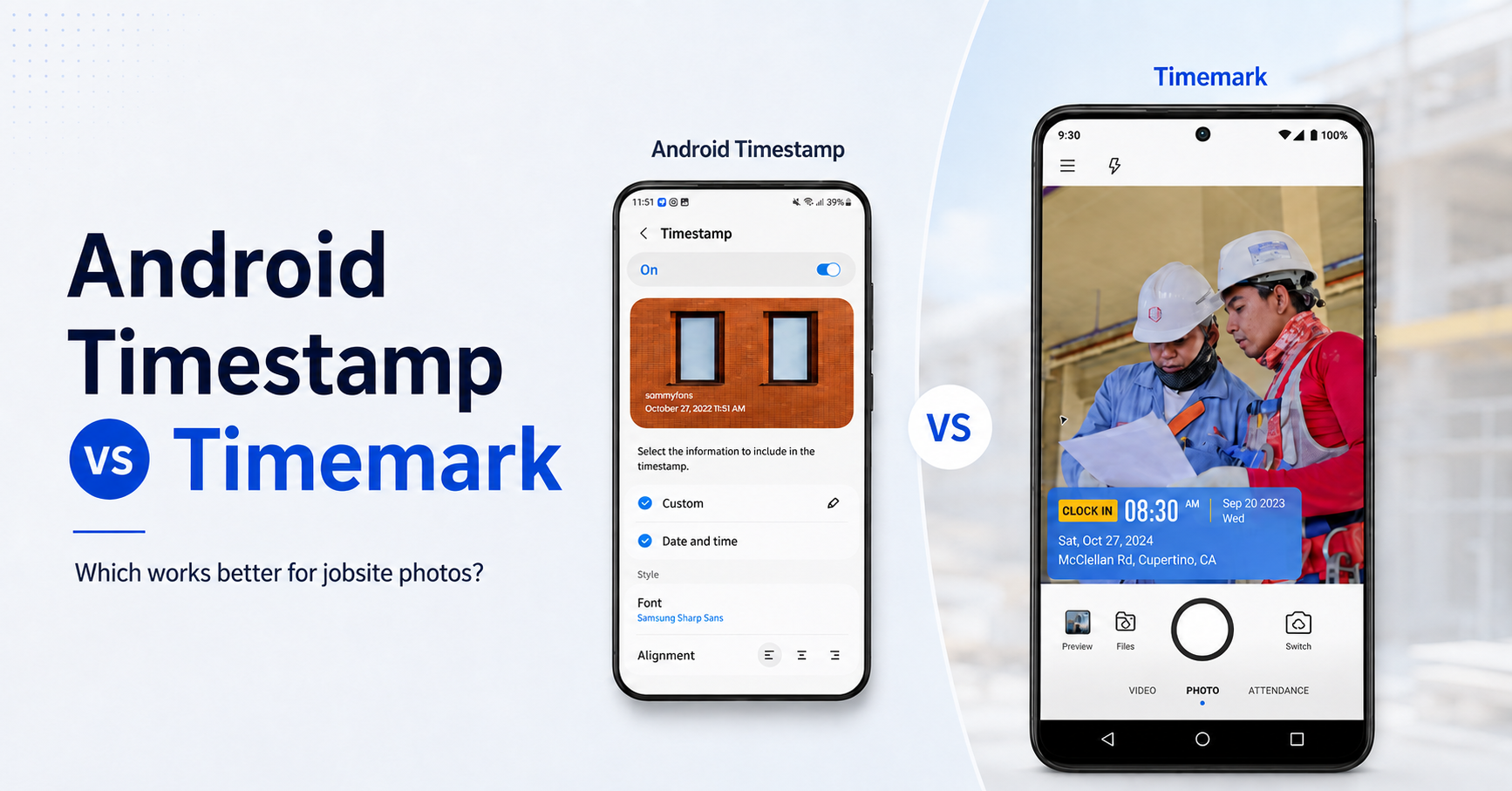
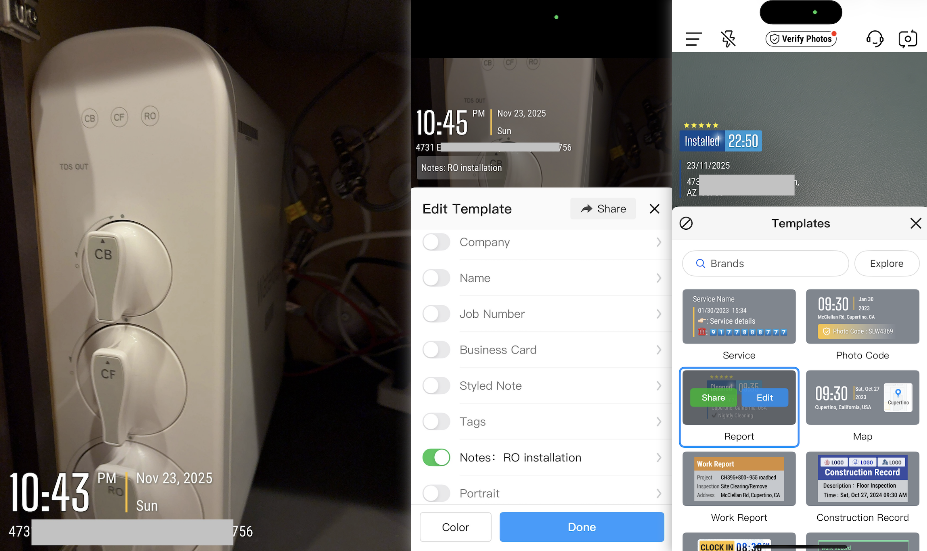
  1. We'll use Timemark Camera in this example. Open the Timemark Camera. You’ll see the default timestamp with date, time, and location.
  2. Tap the timestamp area to add more fields like weather, GPS coordinates, notes, logo, and more.
  3. Scroll through the templates to pick one that best fits your documentation needs.

Timemark makes it simple to capture timestamped photos without the usual manual steps. Just open the app, take your shot, and the date and time appear instantly on the image along with any extra fields you’ve chosen, like GPS, project ID, or technician name.

For teams that need reliable records, Timemark also helps ensure integrity. It checks for system clock changes and flags anything suspicious. This short video shows how Timemark does its magic:

3. Method 3: Adding Timestamps to Existing Photos (Post-Capture)

What about photos you’ve already taken? Maybe you’re looking at a folder of job site images that need to be documented. Here are a few simple ways to add a date and time stamp to existing images on Android:

Option 1: Use a built-in date sticker

Here’s how:

  1. Open the photo in the Gallery app.
  2. Tap Edit, then go to Stickers.
  3. Look under the “Calendar” section and select a date/time sticker.
  4. Drag it into place and save the photo.

This effectively lets you place a timestamp label on the photo. The catch? It’s manual labor. You’d have to do this for each photo, one by one. Great for the occasional image you want to mark, but not feasible for large batches or ongoing needs.

Option 2: Use a batch editing app

These apps make it easy to apply the same look to many photos at once. They are simple, quick and great for teams that want a consistent format. The only catch is that it may fall short for serious documentation, since they rely on editable metadata.

The following uses TimeStampIt to show how to batch timestamp photos:

  1. Open TimestampIt and view your photos in the gallery.
  2. Select the photos you want to add a timestamp to.
  3. Tap the bottom that says "Tap here to stamp photos"
  4. Tap the top-right corner to access editing options.
  5. Tap “Stamp media” at the bottom to apply the timestamp.
  6. Check the results. Your stamped photos will appear in the top row of the gallery and in your camera roll.

Here's a video walkthrough:

4. Basic vs. Professional Timestamp Tools: What to Look for

There are tons of timestamp camera apps out there. Some simply stamp whatever your system clock says and add basic info like date and time. Others go further. They cross-check and validate the timestamp and GPS before imprinting it on the photo to ensure the authenticity.

So what should you look for in a timestamp camera built for work? Here are the key factors I always check:

  1. Anti–tampering time:  If the app just pulls from your phone’s clock, anyone can mess with it. Look for apps that check the time against a server or verify GPS.
  2. Additional fields: A date and time are a good start. But most teams also need GPS, job numbers, technician names, or project IDs. The more fields you can stamp at once, the less you have to type later.
  3. Reliability: If an app keeps freezing or throwing ads at you, it’s just getting in the way. You need something that stays steady when you’re out in the field.
  4. Photo organization: Field teams take a lot of photos. A great app helps sort them into folders by date, location, or project, so you’re not stuck scrolling through your camera roll at the end of the day.
  5. Reporting: Not a must-have, but some apps I’ve tried can even turn your photos into reports. Extra time saved!

Below is a quick comparison of the top timestamp camera apps. And yes, I’ve tested all of these so you don’t have to!

Final thoughts

I once had to document roof damage before a repair job. We needed to show exactly when each photo was taken in case there were any disputes with the client later. Using Timemark to capture timestamped photos removed all the guesswork. The photos told a clear story, and no one questioned the timeline.

Frequently Asked Questions

  • Can timestamped photos hold up in court?
  • Are timestamp camera legal?
  • Can the timestamp be manipulated?
  • Why do you need a timestamp camera?

About Timemark

Timemark is a jobsite photo documentation app with timestamp, GPS geotag, and on-site notes. With Teamspace, field teams can automatically collect, organize, search, and export job photos across projects.

Timemark empowers construction, field service, telecom, and transportation teams to capture verifiable job photos to prevent disputes, support claims, and ensure project transparency. Timemark makes job photos trusted, organized, report-ready, and searchable. For setup instructions and product guidance, visit the Timemark Help Center.

How to Add Timestamps to Photos on Android Phone