
How to Add Timestamps to Photos on Android Phone
Timemark · Nov 20, 2025
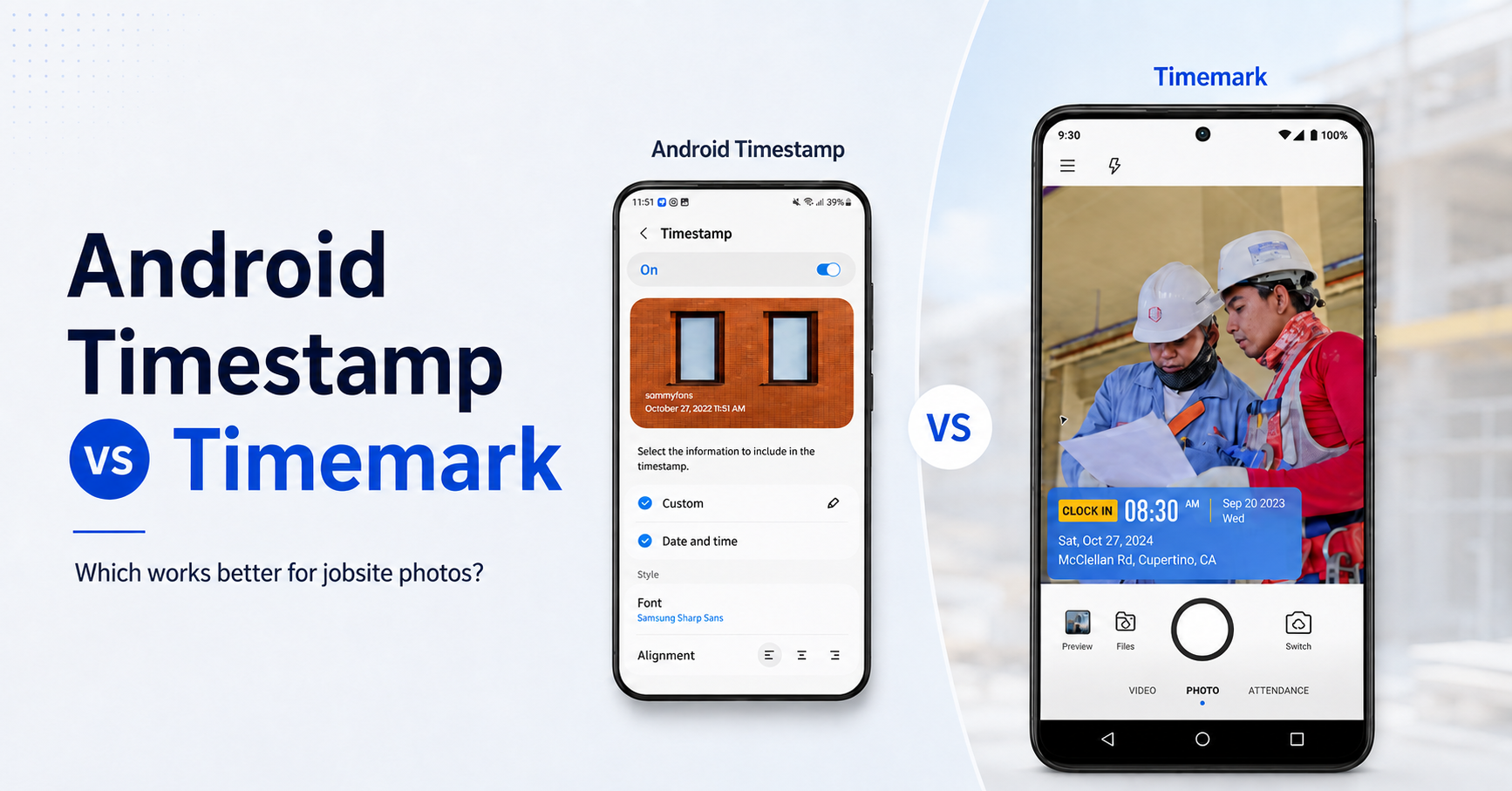
To add a visible date and time stamp to Android photos, choose the method based on when you need it: turn it on before taking a photo, use a timestamp camera for work photos, or add a label to photos already taken.
How to Take Photos With Date and Time on Android
There are three practical options:
- Before you take a photo: turn on a camera watermark or timestamp, if your phone supports it.
- While you take work photos: use a timestamp camera that adds the details at capture.
- After a photo is taken: add a visible label to one image or batch-edit a folder.
Method 1: Turn On Your Android Camera’s Date and Time Stamp
Some Android camera apps can add a visible date and time watermark to new photos.
- Open the Camera app.
- Open Settings.
- Look for Watermark, Timestamp, or Date and time, then enable it.
On many Samsung phones, this is under Camera > Settings > Watermark. Menu names vary by model and software version. If you cannot find a Watermark or Timestamp setting, your built-in camera may not support a visible stamp.
Method 2: Use a Timestamp Camera for Jobsite Photos
If a photo needs work context as it is taken, use a timestamp camera. Timemark can display the date, time, address, GPS, notes, and selected project details directly on a photo at capture.
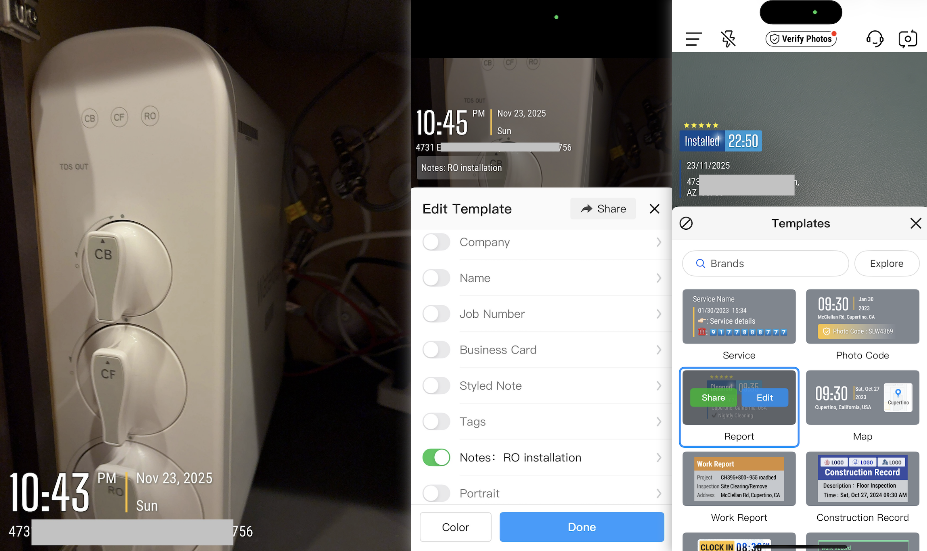
This is useful for teams documenting inspections, service visits, deliveries, or completed work. Learn more about Timemark Timestamp Camera.
Method 3: Add a Timestamp to Photos Already Taken
For one photo, open it in your Gallery app, choose Edit, then look for a date sticker or text tool. For many photos, use a batch editor or an online tool.
A visible label can help explain a photo, but it does not change or verify the original capture metadata. Need a quick option for an existing image? Try the free online timestamp tool.
Can You Change a Photo Timestamp on Android?
You can edit a visible label and, in some apps, edit image metadata. Neither action proves when the original photo was taken. If the time and location need to be captured as part of a work record, add them when taking the photo instead.
Which Method Should You Use?
- Built-in camera watermark: best for new personal photos when your phone supports it.
- Timestamp camera: best for new work photos that need time, location, and context at capture.
- Gallery or batch editor: best for photos already taken.
About Timemark
Timemark is built for field teams that need a clear record from the moment a photo is taken. Add the time, address, GPS coordinates, notes, logo, and project context directly on the image, then organize the work in Teamspace by project and share or export the record when needed.