
How to Time Stamp Photos on iPhone (Tested Free Methods)
Gloria · Nov 17, 2025
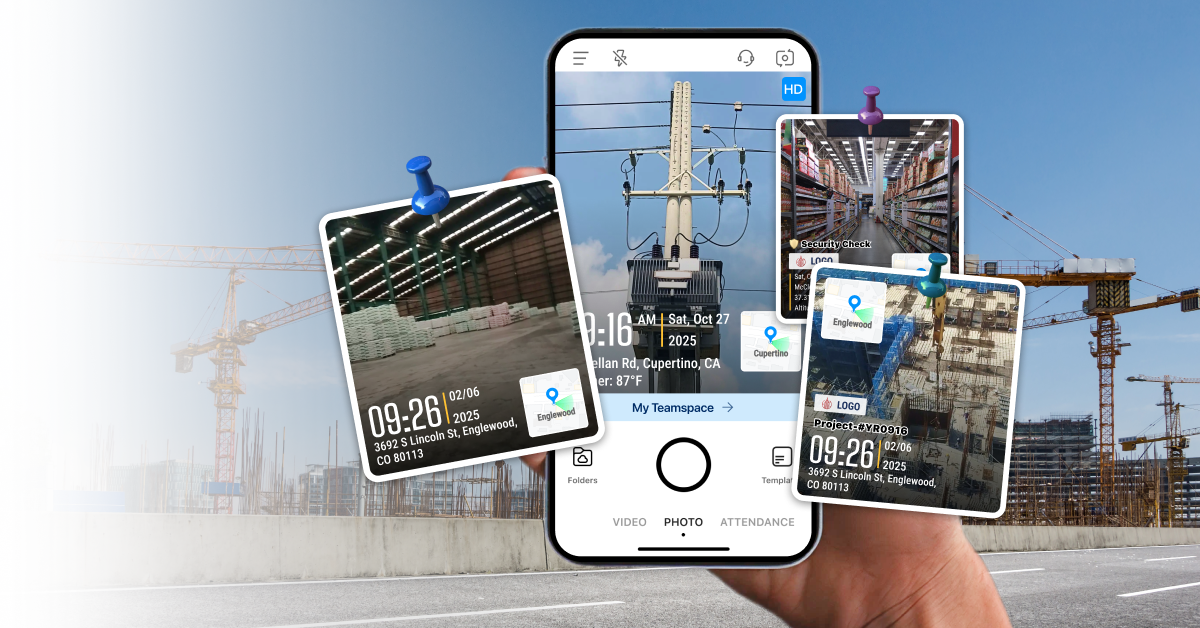
If you take photos for work, you’ve probably run into this: a perfectly good photo with zero context. No timestamp. No location. No proof of when it happened. When I worked with contractors as an office coordinator, I had the “when was this photo taken?” conversation more times than I can count.
After years of dealing with chaos, I’ve tested almost every method myself. In this post, I’ll break down the best ways to timestamp iPhone pictures.
3 Methods to Time Stamp a Photo on iPhone
- Add Timestamps to Existing Photos on iPhone
- How to Batch Timestamp Photos
- Timestamp a Photo as you Take it Using a Timestamp Camera
Method 1: Add Timestamps to Existing Photos on iPhone
Let’s start with the simplest case. You already have photos in your camera roll. They need visible timestamps.
iPhone Photos does store the time and date inside metadata. But that is not printed on the actual image. To make it visible, you can use Markup. I use this method only when I need to timestamp one or two photos. Maybe five if I am feeling optimistic.
Here is how to add a timestamp to an existing photo using Markup:
- Open your Photos app. Find the image you want to add a timestamp to and tap on it.
- Tap Edit. In the top right corner of the screen, tap Edit to enter photo editing mode.
- Tap Markup. Tap the pen icon or the three dots (•••) in the top-right corner, then choose Markup from the menu.
- Tap the “+” button at the bottom right and select Text. Tap inside the box to edit the text, then type in the date and time you want to show.
- Use your finger to drag the text to where you want it. You can also resize it using the blue dots. Once it looks good, tap Done, then Done again to save your changes.
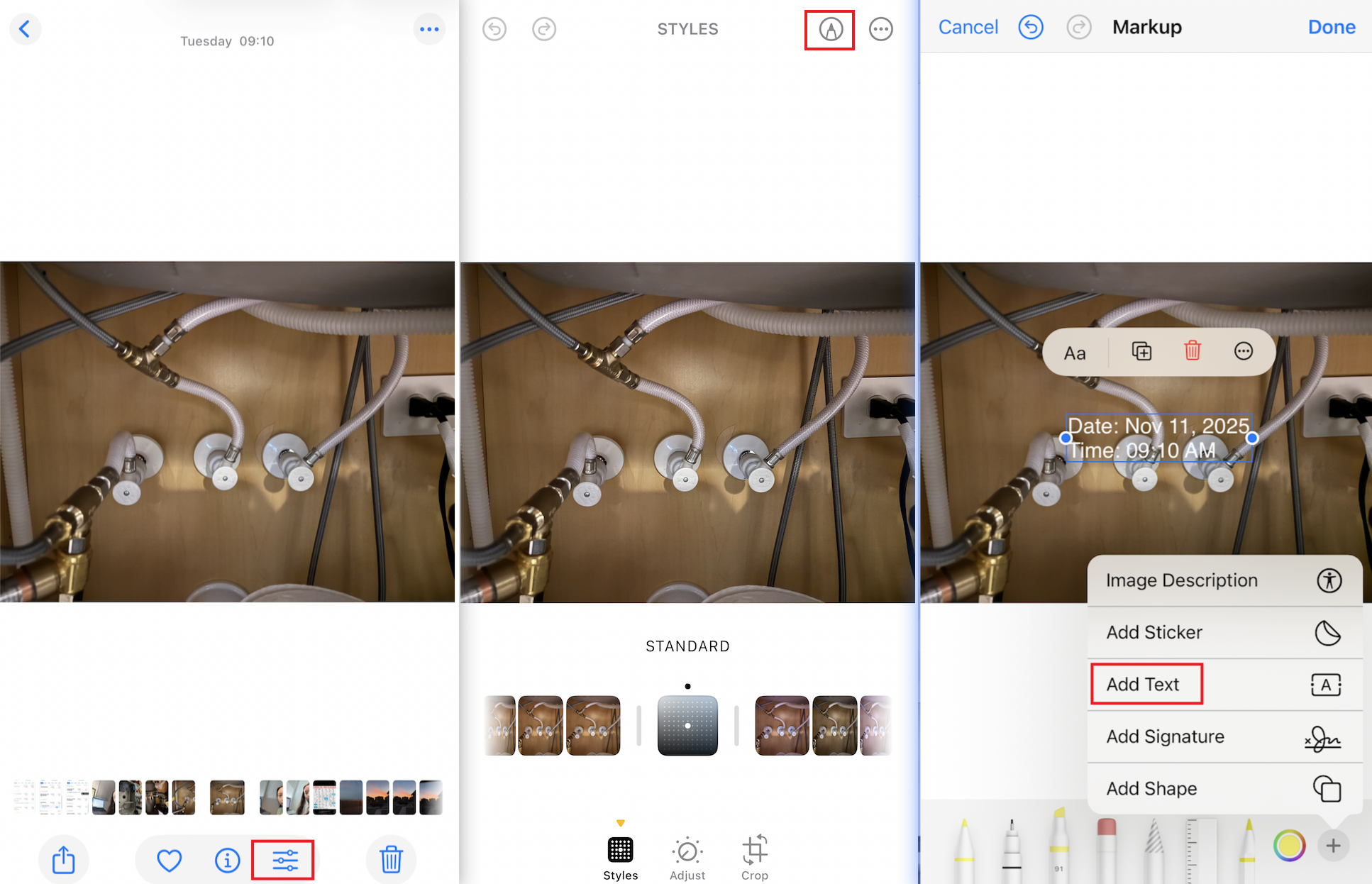
This methods gives you full control over the style and placement. The downside is speed. If your job involves dozens of photos per day, skip ahead because your thumbs will stage a rebellion.
The benefit of this method is control. You can pick your own text size, color and placement. If you only need a quick fix, this is enough.
Method 2: How to Batch Timestamp Photos
Batch timestamping is where most people hit a wall. Editing one photo is fine. Editing fifty is not. That’s where batch editing apps come in.
These apps make it easy to apply the same look to many photos at once. They are simple, quick and great for teams that want a consistent format. The only catch is that some apps ignore the original metadata.
Here's how to batch add time stamps to photos using DateStamper:
- Open the app.When asked, allow access to your photo library.
- Choose a photo. Inside the app, select the photo(s) you want to add a date stamp to.
- Alternatively, you can also do this directly from the Photos app: Open the photo Tap Edit (top right) Tap the three dots (•••) Select DateStamper
- Apply the stamp. Once selected, the date stamp will appear, usually in the bottom-right corner.
- Save the photo. Tap Done to save the stamped photo to your camera roll.
This video shows the full process in action.
This method works great when you already have a large batch of photos. The app reads each photo’s metadata and stamps the photo time during import, so you keep the original capture details without doing anything manually. The only thing to watch out for is this: if the metadata was changed earlier, the app will still rely on that edited information.
Method 3: Timestamp a Photo as You Take It Using a Timestamp Camera
This is the method I personally use and trust the most. If you take photos on the job, real-time stamping is the cleanest workflow.
A timestamp camera lets you add date and time to photos the moment you take them. Many timestamp camera apps also add extra details like location, notes, logo, or project info.

This video shows how Timemark works in practice:
What to Look for When Choosing a Timestamp Camera?
There are tons of timestamp and date-stamper apps out there, many with almost identical names. Here’s what I look for in a good timestamp camera:
- Anti–tampering time: If the app depends on the user’s device clock, someone can change it. Look for apps that sync with a server or validate the timestamp.Additional fields: Most teams need more than a visible timestamp, like GPS, job number, or project ID.
- Additional fields: Most teams need more than a visible timestamp, like GPS, job number, or project ID.
- Reliability: If an app keeps freezing or throwing ads at you, it’s just getting in the way. You need something that stays steady when you’re out in the field.
- File naming: iPhone photo names are impossible to interpret and tell you nothing about when or where the photo was taken. A good timestamp camera adds real information, like time, location or project details.
- Photo organization: Field teams capture a lot of photos. A good system sorts them into project folders so you can actually find what you need later.
- Reporting: Not a must-have, but some apps I’ve tried can even turn your photos into reports. Extra time saved!
Below is a quick comparison of top timestamp camera applications (I’ve tried them all out for you!) on app stores:
Final thoughts
Timestamping photos sounds simple until you actually try to build a clean workflow. iPhone gives you the basics, but it doesn’t give you the control or consistency field teams need.
Frequently Asked Questions
About Timemark
Timemark is a jobsite photo documentation app with timestamp, GPS geotag, and on-site notes. With Teamspace, field teams can automatically collect, organize, search, and export job photos across projects.
Timemark empowers construction, field service, telecom, and transportation teams to capture verifiable job photos to prevent disputes, support claims, and ensure project transparency. Timemark makes job photos trusted, organized, report-ready, and searchable. For setup instructions and product guidance, visit the Timemark Help Center.